
Copy Photos to a Computer Without Losing Track of the Originals
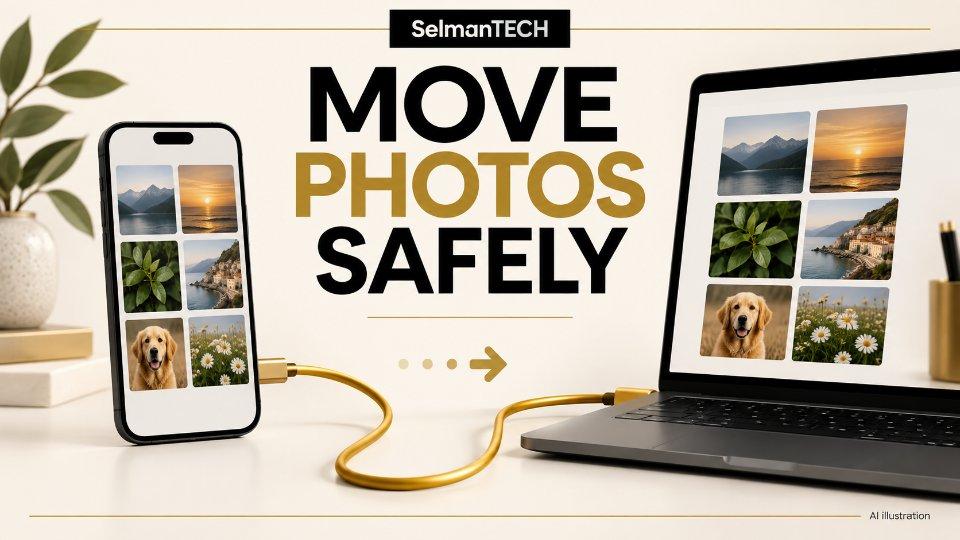
Moving photos becomes risky when copying and deleting happen in the same hurried session. Separate those tasks: first make a second copy, then verify it, and only later decide whether to remove originals.
This example uses a trusted Windows computer and an Android phone with USB file-transfer support. Menus and available folders vary by device.
Prepare a destination
Create a clearly named folder on the computer, such as “Phone photos — September 2026.” Check that the computer has enough free storage.
Unlock the phone and connect it with a cable that supports data, not charging alone. If prompted, choose File Transfer in the phone's USB options. Use your own trusted computer rather than a public workstation.
Copy a small sample
Find the relevant photo folder and copy five items first. Include a photo and a video if you plan to transfer both.
Open them on the computer. Confirm that the images are readable and the video plays. A filename appearing in a folder does not prove the whole file is usable.
Transfer in understandable groups
Copy one date range or folder at a time. Use copying rather than cutting so the originals remain on the phone.
After each group, compare the number of selected files with the destination. Spot-check several files from the beginning and end. If a transfer is interrupted, inspect the destination before retrying; avoid blindly overwriting files whose origin you cannot identify.
Understand cloud-only pictures
A gallery may show pictures stored in a cloud account rather than as ordinary local files. If an expected photo is missing from USB storage, check its location in the official photo service instead of assuming it was deleted.
Follow that service's export or download process when necessary.
Finish safely
Eject the device where the computer provides that option and disconnect after transfers finish. Keep important photos in more than one appropriate location. This workflow creates a checked copy; it does not require deleting anything from your phone.
Sources
Source: Android: transfer files to a computer
Source: Android: transfer files to a computer