
Scan Receipts in Google Drive So You Can Find and Read Them Later
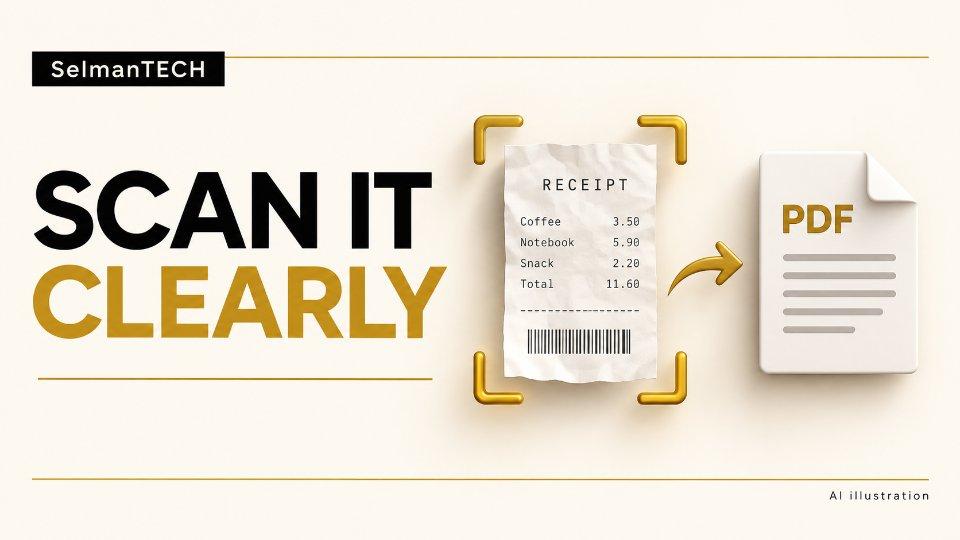
A receipt photograph buried among hundreds of pictures is easy to lose. A clearly named PDF in a sensible folder is easier to find when you need a warranty record or proof of purchase.
Google Drive’s mobile app includes document scanning. It can save scans as searchable PDFs, but text recognition and image quality still need checking. Scanning is a mobile-app feature, not the same as uploading a picture through Drive’s website.
Make the page easy to read
Lay the receipt on a contrasting surface in even light. Flatten curled corners and avoid casting a shadow with the phone. Capture the entire page, including the merchant, date and total.
Open Drive’s scanning camera, capture the document, and review the crop. Correct the boundaries if they remove a line or include too much background. For a multi-page document, check the page order before saving.
Use a filename that answers a question
Try a pattern such as “2026-09-24 — Kettle receipt — Example Shop.” This is a fictional example. A date and item are more useful than “Scan 17.”
Save the document into a folder you will recognize. Before leaving the task, reopen the PDF and zoom in on small print. Searchable text is convenient, but it is not a reason to ignore an unreadable image.
Keep sharing separate from storage
Saving a scan to your account does not mean you should make it public. Receipts can contain addresses, payment details or other identifiers. Review the recipient and sharing settings before sending a link.
A scanned copy may not replace an original for every warranty, reimbursement or official process. Check the recipient’s requirements before discarding paper.
If the scan looks poor
Retake it with better light before applying stronger filters. Overprocessing can erase faint characters. For an especially important record, compare the saved PDF with the original line by line.
The goal is a record you can retrieve and read—not simply a smaller pile of paper.
Sources
Source: Google Drive: scan documents on Android
Source: Google Drive: scan documents on Android