
Send Files With Quick Share—and Confirm the Right Phone Received Them
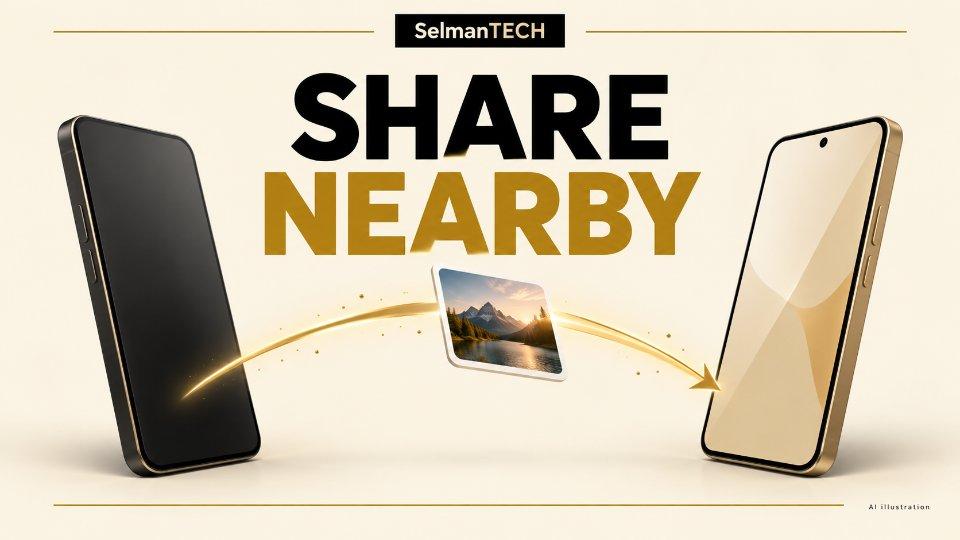
Messaging a file to yourself is not always the simplest way to move it between nearby devices. Quick Share can transfer content between supported devices. The important part is checking the receiving device, not just tapping the first name that appears.
This guide focuses on nearby Android-to-Android sharing. Windows support and cross-platform options have separate requirements, and Samsung menus may differ.
Run a small test first
Keep both phones nearby and unlocked. Turn on Bluetooth and the connectivity requested by the devices. On the receiving phone, open Quick Share’s receiving mode or appropriate visibility setting.
On the sending phone, open one non-sensitive photo, choose Share, and select Quick Share. Pick the receiving device after confirming its name with the person holding it. The recipient should check the request before accepting.
Google’s guidance notes that transfers between your own devices on the same Google Account can be accepted automatically. Do not rely on an acceptance prompt as your only identity check.
Verify the actual file
On the recipient’s phone, open the transferred photo. For a document, open the document itself—not just its filename. For a video, check that it plays.
When sending several items, compare the number received with the number selected. Keep the originals until you are satisfied that all needed files arrived. A transfer is not a backup until you have confirmed the second copy.
If the other phone does not appear
Check receiving visibility, unlock the screen and bring the devices closer. Confirm both support the chosen sharing method. Some older Android versions need location enabled for discovery. Follow the manufacturer’s troubleshooting rather than installing a random transfer utility.
Leave receiving mode when finished, or return visibility to a narrower setting such as your own devices. Never accept an unexpected file simply because the sender’s name looks familiar.
SelmanTECH takeaway
Select, confirm, send, open: four small steps make nearby sharing easier to trust.
Sources
Source: Android: use Quick Share
Source: Android: use Quick Share